
ServiceNow Notification streamlines operations by enabling automated updates and workflow execution within ServiceNow. With the Cloudaware integration, teams can synchronize incidents, changes, and service requests to improve operational efficiency and ensure data consistency. The integration reduces manual tasks, accelerates service delivery, and improves visibility into IT operations.
This guide explains how to set up notifications from Cloudaware flows to ServiceNow.
 To see how Cloudaware seamlessly integrates with ServiceNow Notifications, request a demo.
Use case: Automated incident creation for impaired EC2 instances
When an EC2 instance in your external CMDB is reported as impaired, a ServiceNow incident is automatically created. This ensures that infrastructure issues are captured immediately in your ITSM workflow without manual intervention.
Prerequisites
-
Ensure you have Admin permissions in ServiceNow.
-
Connect your ServiceNow instance to Cloudaware. See this guide.
Configure a ServiceNow notification in Cloudaware
-
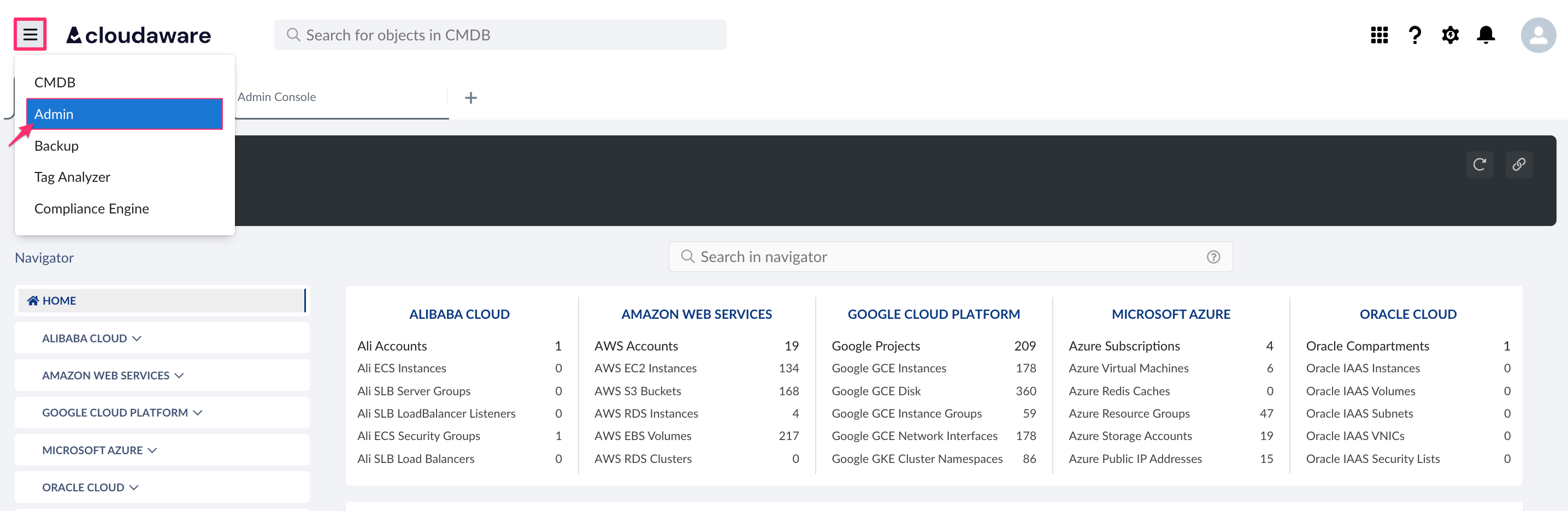
Log in to Cloudaware → Admin.
-
Find ServiceNow Notification in Issue Management integrations. Click +ADD.

-
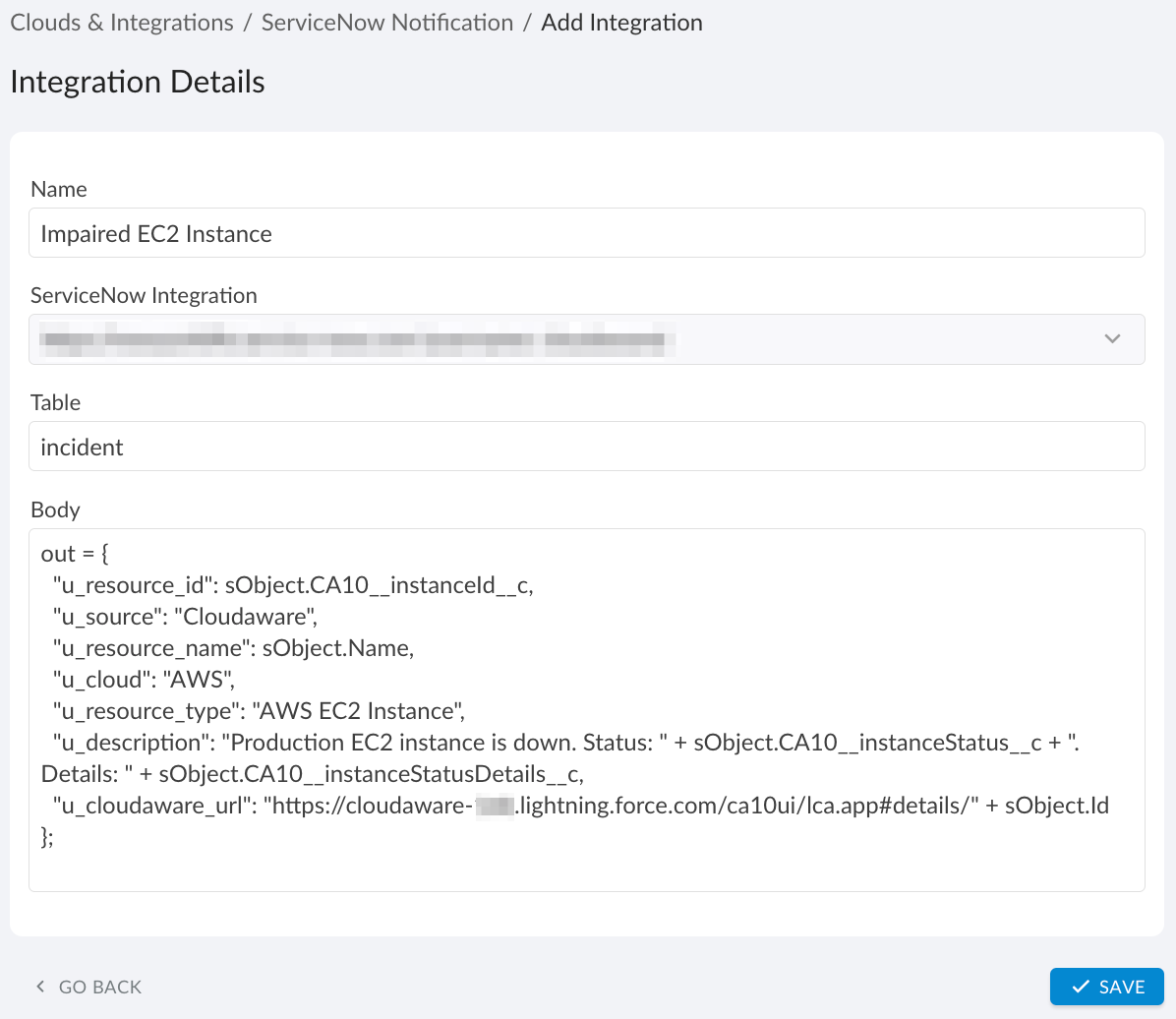
Fill out the form:
WHERE
Name: enter a display name for this integration, e.g., Impaired EC2 Instance
ServiceNow Integration: select the ServiceNow instance from the drop-down
Table: enter the target table name, e.g.,incident
Body: write JavaScript to map Cloudaware fields to ServiceNow fieldsExample:
out = {
  "u_resource_id":    sObject.CA10__instanceId__c,
  "u_source":         "Cloudaware",
  "u_resource_name":  sObject.Name,
  "u_cloud":          "AWS",
  "u_resource_type":  "AWS EC2 Instance",
  "u_description":    "Production EC2 instance is down. Status: "
                      + sObject.CA10__instanceStatus__c
                      + ". Details: "
                      + sObject.CA10__instanceStatusDetails__c,
  "u_cloudaware_url": "https://<your-org>.lightning.force.com/ca10ui/lca.app#details/"
                      + sObject.Id
};
The required variable is out – a dictionary of snow_field → cloudaware_field. Use sObject.<fieldApiName> to reference the triggering record. Field API names are available via Cloudaware CMDB Navigator → Setup → Object Manager.
Click SAVE.
-
A green light in the ‘Status’ column indicates a successful configuration. If the light is red, contact support@cloudaware.com.
-
Copy and save the generated URL as it is required for further configuration.
Configure an outbound message
After setting up the ServiceNow Notification in Cloudaware, configure the outbound message that will be triggered by a flow.
-
In Cloudaware CMDB Navigator, go to Setup.
-
In the Quick Find box, type Outbound. Under Workflow Actions, select Outbound Messages → click New Outbound Message.
-
From the drop-down list, select the object (in this example, AWS EC2 Instance). Click Next.
-
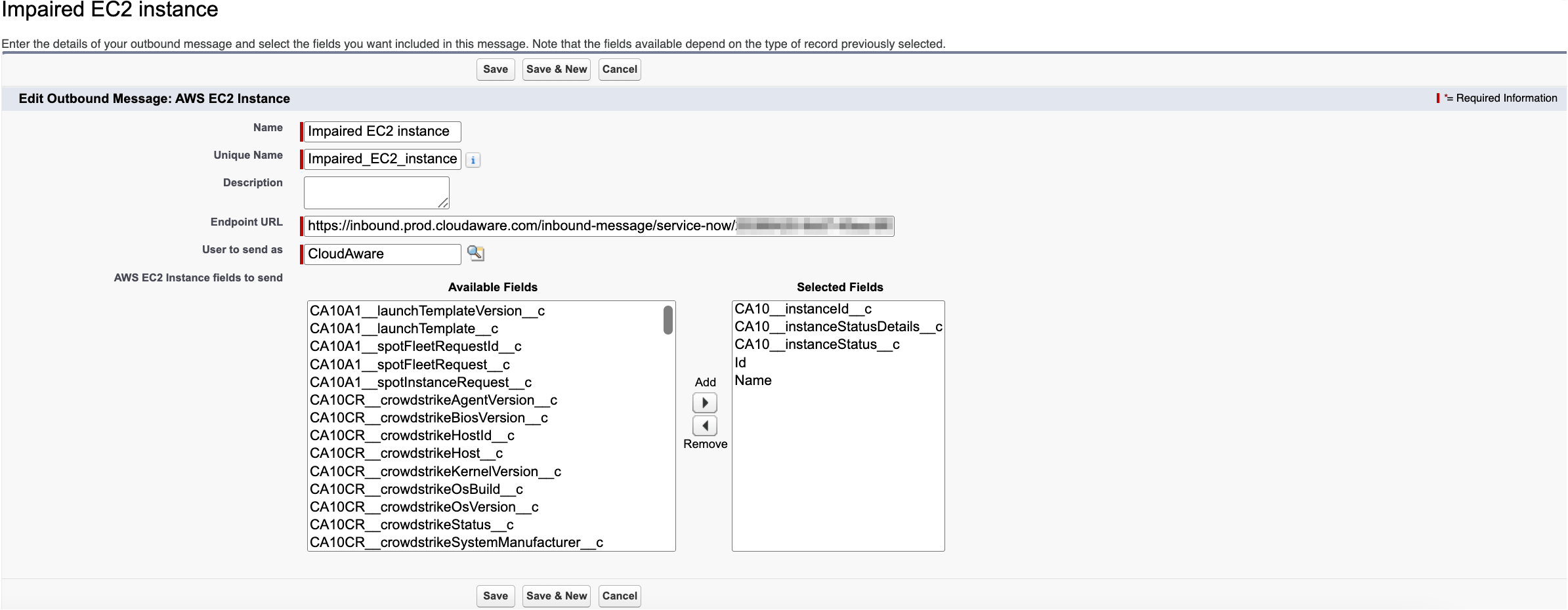
Configure the outbound message:
WHERE
Name: a descriptive name, e.g., Impaired EC2 instance
Endpoint URL: the saved URL from ServiceNow Notification configured in Cloudaware
Selected Fields: move fields from Available Fields to Selected Fields* using the arrow buttons (in this example, AWS EC2 Instance fieldsName,CA10__instanceId__c,CA10__instanceStatusDetails__c, andCA10__instanceStatus__care used;Idis a default record field ID)
Make sure all fields referenced in the notification body are added to the Selected Fields section.
Click Save.
Set up a record-triggered flow
Set up a flow that triggers the outbound message configured earlier.
-
In Setup, type Flows in the Quick Find bar → under Process Automation, select Flows → click New Flow.
-
Select Start From Scratch → click Next.
-
Select Record-Triggered Flow → click Create.
Select the object, configure a trigger, and set entry conditions, e.g., in this case:
Object: AWS EC2 Instance
Trigger the Flow when: A record is updated
Condition Requirements: All Conditions are Met (AND)
Field: Status
Operator: equals
Value: ImpairedChoose "Only when a record is updated to meet the condition requirements" – this ensures incidents are created only on state change, not on every save.
Click Next.
-
In the Optimize Flow section, select Actions and related records, then enable the Asynchronous Path toggle. In the asynchronous branch, add an element: Action → Outbound Messages and select your outbound message from step 2 (in this case, Impaired EC2 instance).
-
Click Save and name the flow, e.g., ServiceNow Incident Alert
-
Click Activate to enable the flow.