Oracle Cloud Start Guide

Oracle Cloud provides a flexible data platform that enables developers to build big data applications on a massive scale. This guide explains how to add Oracle Cloud tenancy to Cloudaware.
Summary
To integrate Oracle Cloud with Cloudaware:
Generate a key pair in Cloudaware.
Configure access for Cloudaware in Oracle:
Upload the public key as API Key for the user
Create a read-only policy for the user
Add Oracle Cloud tenancy to Cloudaware.
See the setup guidelines below for details.
Set up credentials
Generate a key pair
Log in to Cloudaware → Admin.
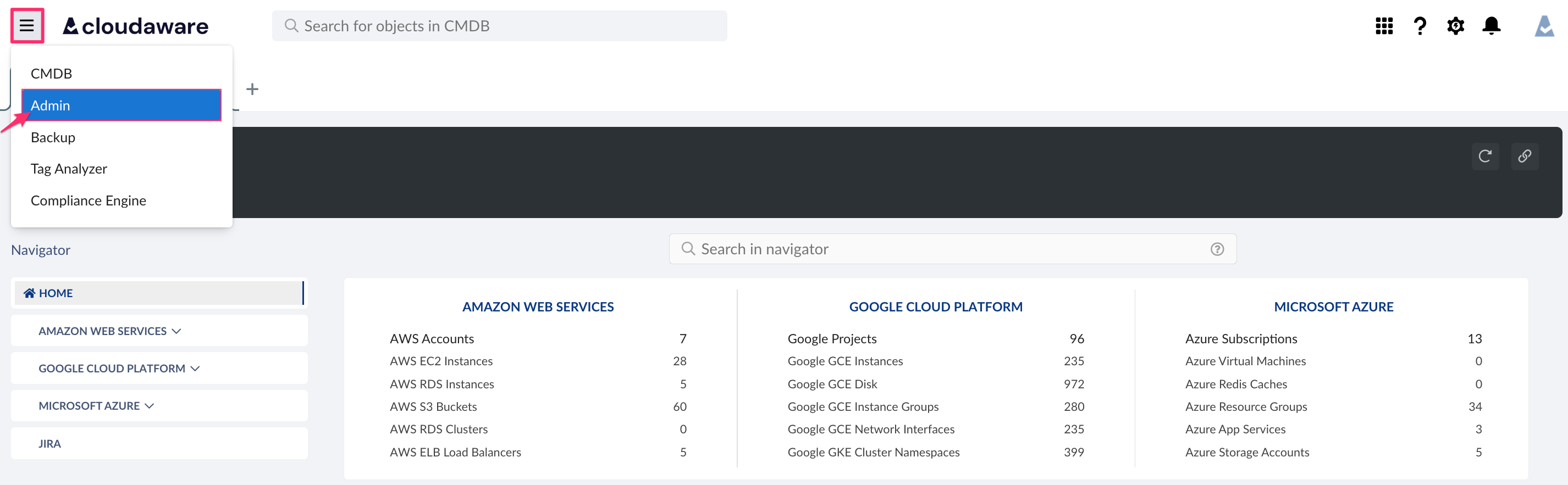
Find Oracle Cloud. Click +ADD.

Click the link create a private and public key pair.

Use a meaningful tenancy name and insert Tenancy OCID in the form:
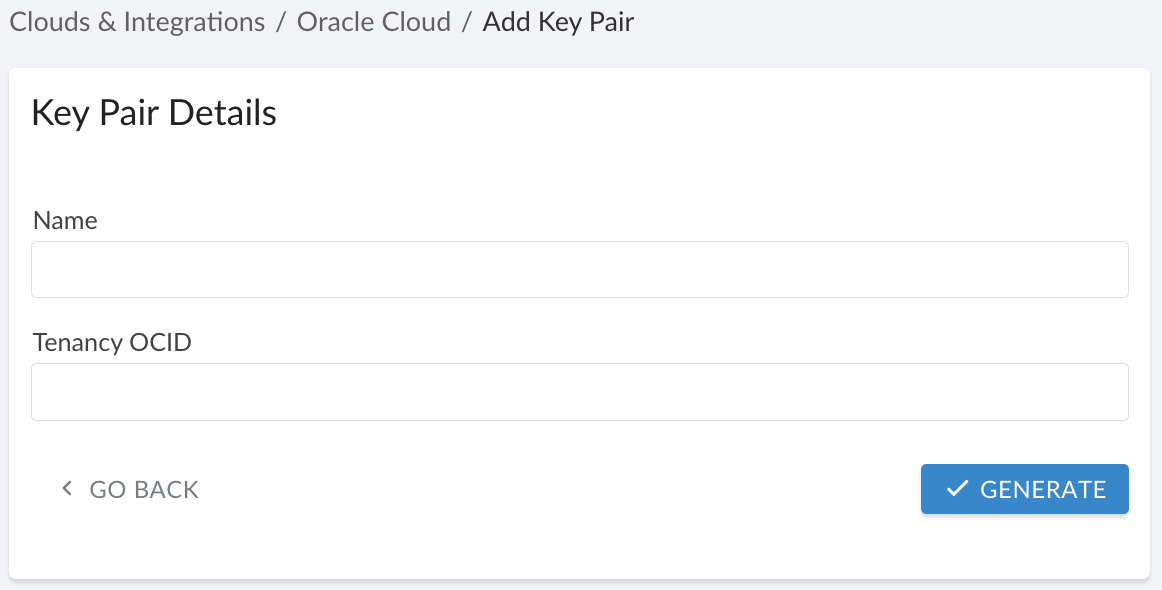
Click GENERATE.Copy the public key to the clipboard or download it.
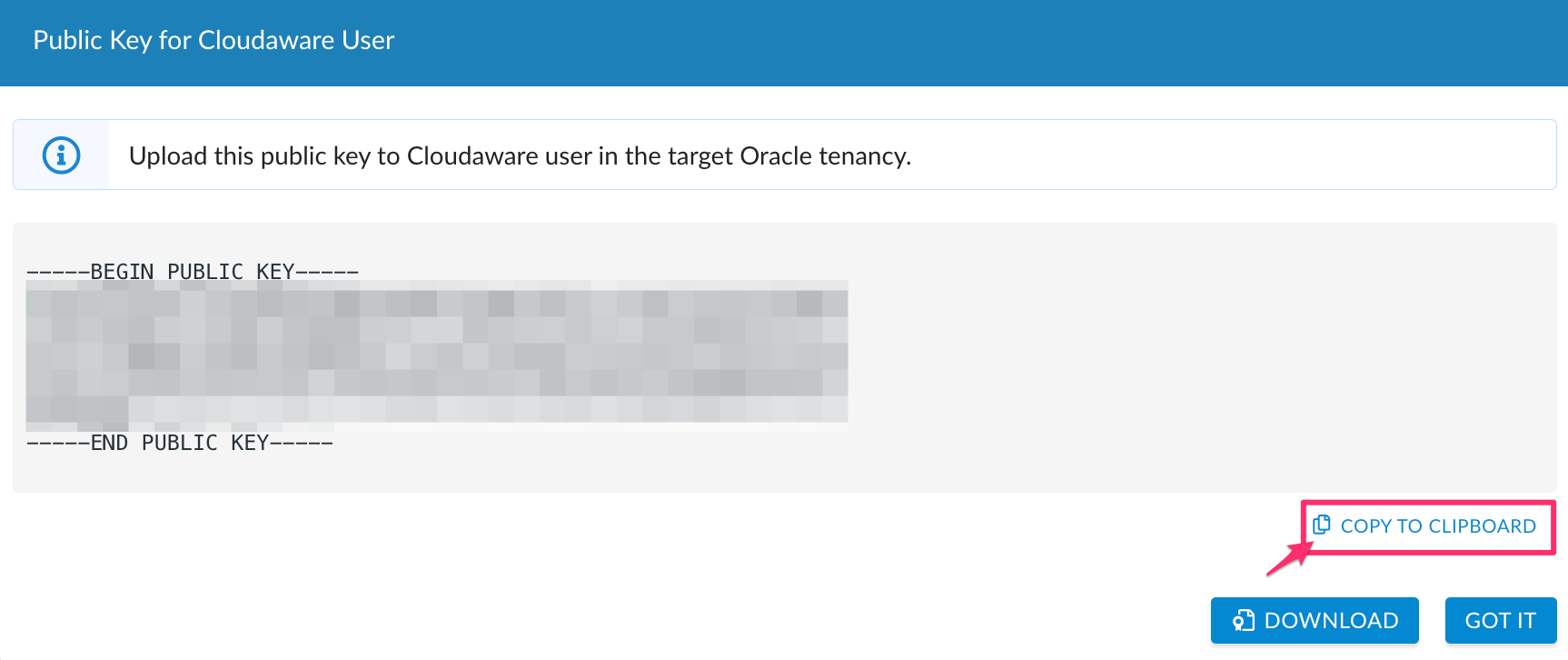
Click GOT IT to proceed.
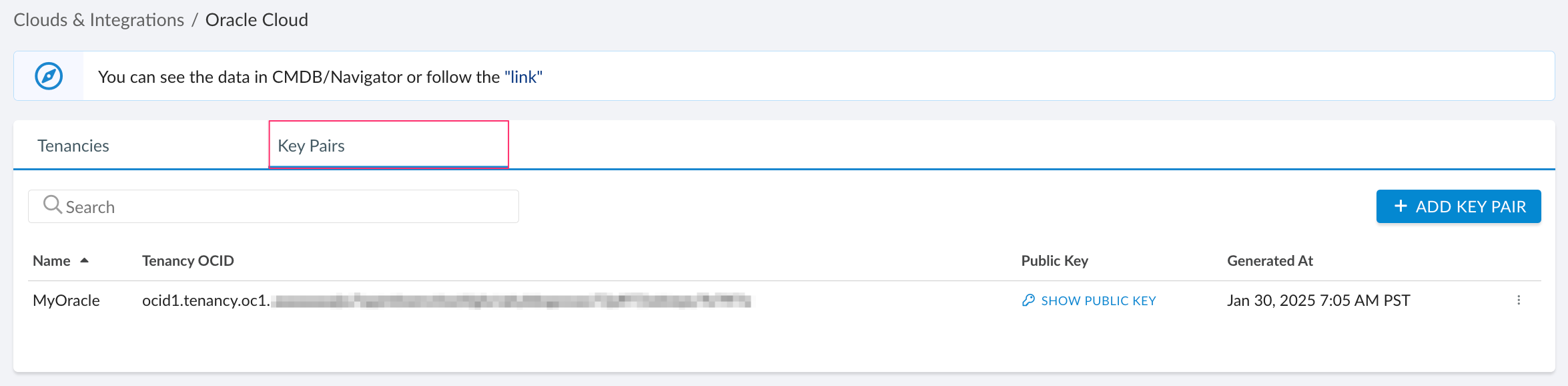
The public key is saved in Cloudaware. Check the tab 'Key Pairs':
Upload the public key pair in Oracle
Log in to the Oracle Cloud console → OCID console.
Upload a public key to a user.

Allow Oracle time to process the configuration after the key has been uploaded.
Copy the User OCID, Fingerprint, and Default Region that are required for further setup.
Create a read-only policy
To allow Cloudaware to collect data from the Oracle tenancy, create a read-only policy for the user using one of the following statements:
Allow group <groupName> to read dedicated-vm-hosts in tenancy
Allow group <groupName> to read all-resources in tenancy
Allow group <groupName> to read compartments in tenancy
WHERE <groupName> is a placeholder for the name of the group the Cloudaware user belongs to
OR
Allow group id <groupName> to read dedicated-vm-hosts in tenancy
Allow group id <groupName> to read all-resources in tenancy
Allow group id <groupName> to read compartments in tenancy
WHERE <groupName> is a placeholder for the ID of the group the Cloudaware user belongs to
Add Oracle Cloud tenancy
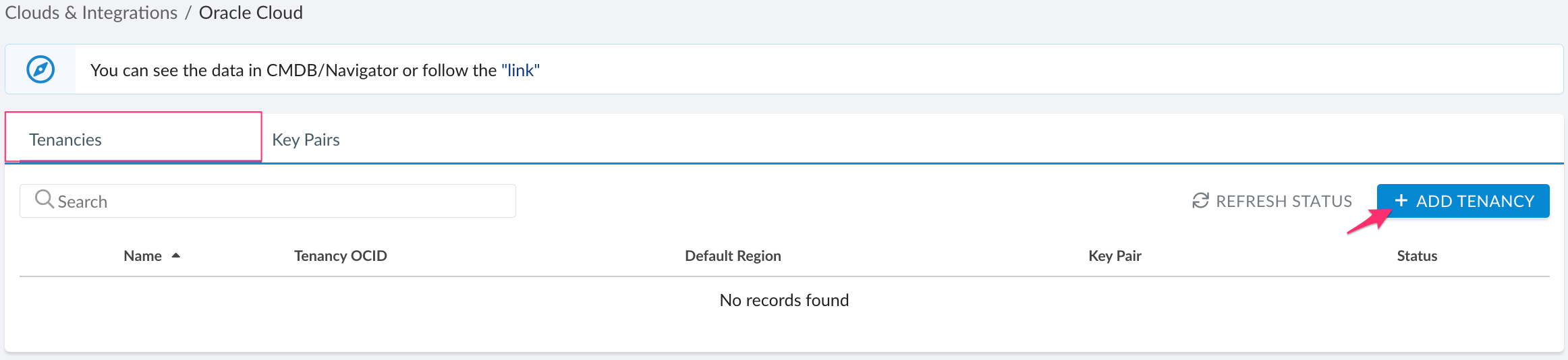
Go back to Cloudaware. Select the tab 'Tenancies' → +ADD TENANCY.
Fill out the form:
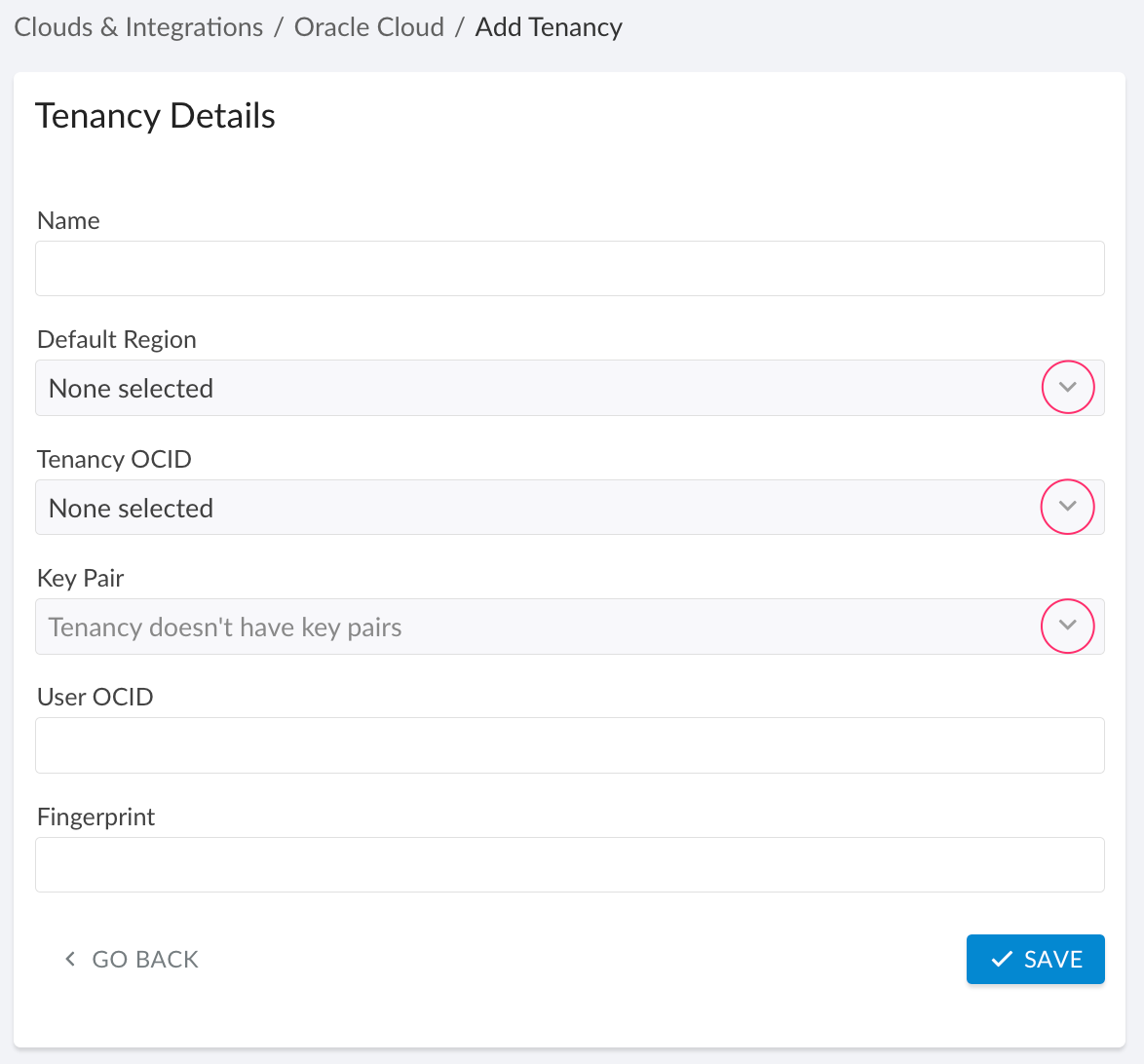
WHERE
Name – provide a meaningful name
Default Region – select the region from the list
Tenancy OCID – select the tenancy OCID from the list
Key Pair – select the key pair from the list
User OCID – enter the OCID of the user you uploaded the key for in Oracle
Fingerprint – enter the fingerprint of the key that was added
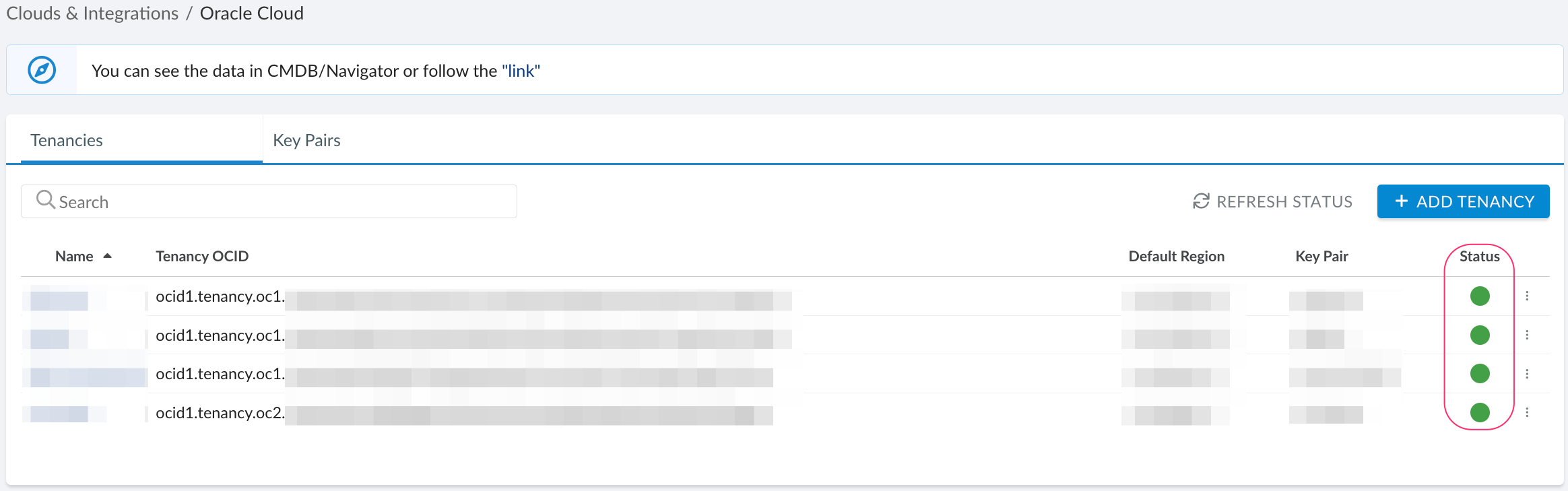
Click SAVE.The green light in 'Status' means that the integration has been successfully configured. If there is a red light, please contact support@cloudaware.com.
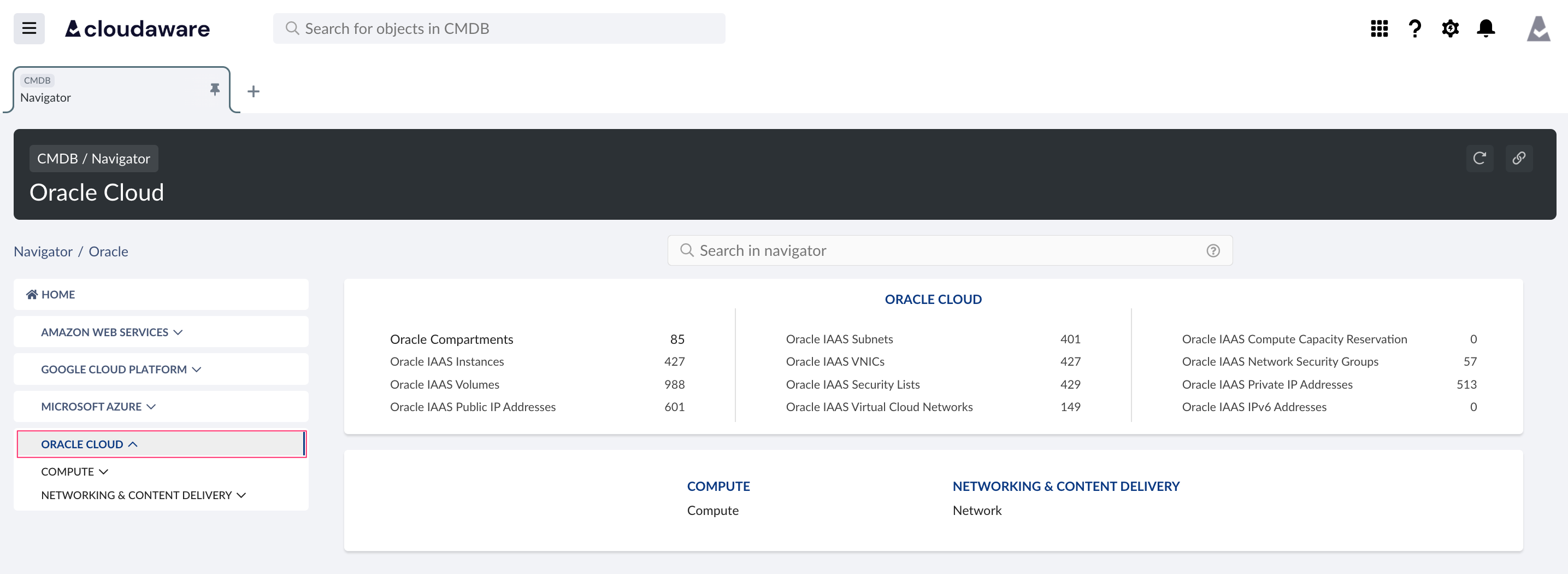
To view Oracle-related data, go to Cloudaware CMDB Navigator. Select ORACLE CLOUD in the menu on the left: