
Connect Azure During Trial Registration

Use this guide to connect the first Azure subscription while registering for a Cloudaware trial.

If the Cloudaware account is already active and another Azure AD or subscription must be added, use Add an Azure Directory or Subscription from the Admin Panel instead.
Prerequisites
Before you begin, ensure that you have Azure tenant admin privileges to create applications and assign roles.
Start in Azure
Register an Azure application for Cloudaware
Log in to the Azure portal.
Go to App registrations.
Click + New registration.
Configure the application:
Name: Enter a descriptive name, for example,
cloudaware-api-access.Supported account types: Select Single tenant only - Default Directory (Accounts in this organizational directory only) or Multiple Entra ID tenants (Accounts in any organizational directory).
Redirect URI: (optional) Select Web and enter
https://cloudaware.com.
Click Register.
Copy and save the following values:
Application (client) ID
Directory (tenant) ID
Configure API permissions
On the application, go to API permissions.
Click Add a permission.
Under Microsoft APIs, add Azure Service Management:
Delegated permissions: Select
user_impersonation.
Add Microsoft Graph permissions:
Delegated permissions: Select
Directory.Read.All.Application permissions: Select
Directory.Read.All.
Click Grant admin consent for the tenant.
Permissions may take up to 30 minutes to propagate.
Assign Azure RBAC roles
Assign RBAC roles based on the required discovery scope.
Tenant-wide discovery
Use this option to let Cloudaware discover subscriptions automatically across the tenant.
In the Azure portal:
Go to Management groups.
Select the Tenant Root Group.
Open Access control (IAM).
Click + Add → Add role assignment.
Assign the
Readerrole to the Cloudaware application (in this example,cloudaware-api-access).Click Review + assign.
Subscription-level discovery
Use this option if you want to limit Cloudaware discovery to specific subscriptions.
In the Azure portal:
Go to Subscriptions.
Select the subscription.
Open Access control (IAM).
Click + Add → Add role assignment.
Assign the Reader role to the Cloudaware application (in this example,
cloudaware-api-access).Click Review + assign.

Tip: If additional capabilities are required, such as Key Vault metadata, AKS details, reservations, or tagging, assign the required optional roles at the appropriate scopes. For details, see Additional permissions in Azure.
Create a client secret
Cloudaware supports two authentication methods for Azure: client secret and certificate (recommended). However, for the trial registration, it is sufficient to use a client secret.
Open the Cloudaware application in Azure.
Go to Certificates & secrets.
Open the Client secrets section.
Click New client secret.
Configure the secret:
Description: Enter a descriptive name, for example,
ca-api-key.Expires: Select the required expiration period.
Copy and securely save the secret value. Note: The client secret value cannot be retrieved after this step.
Complete the setup in Cloudaware
Return to the Cloudaware Launcher (Control Hub) and click Connect Azure.
Fill out the form:
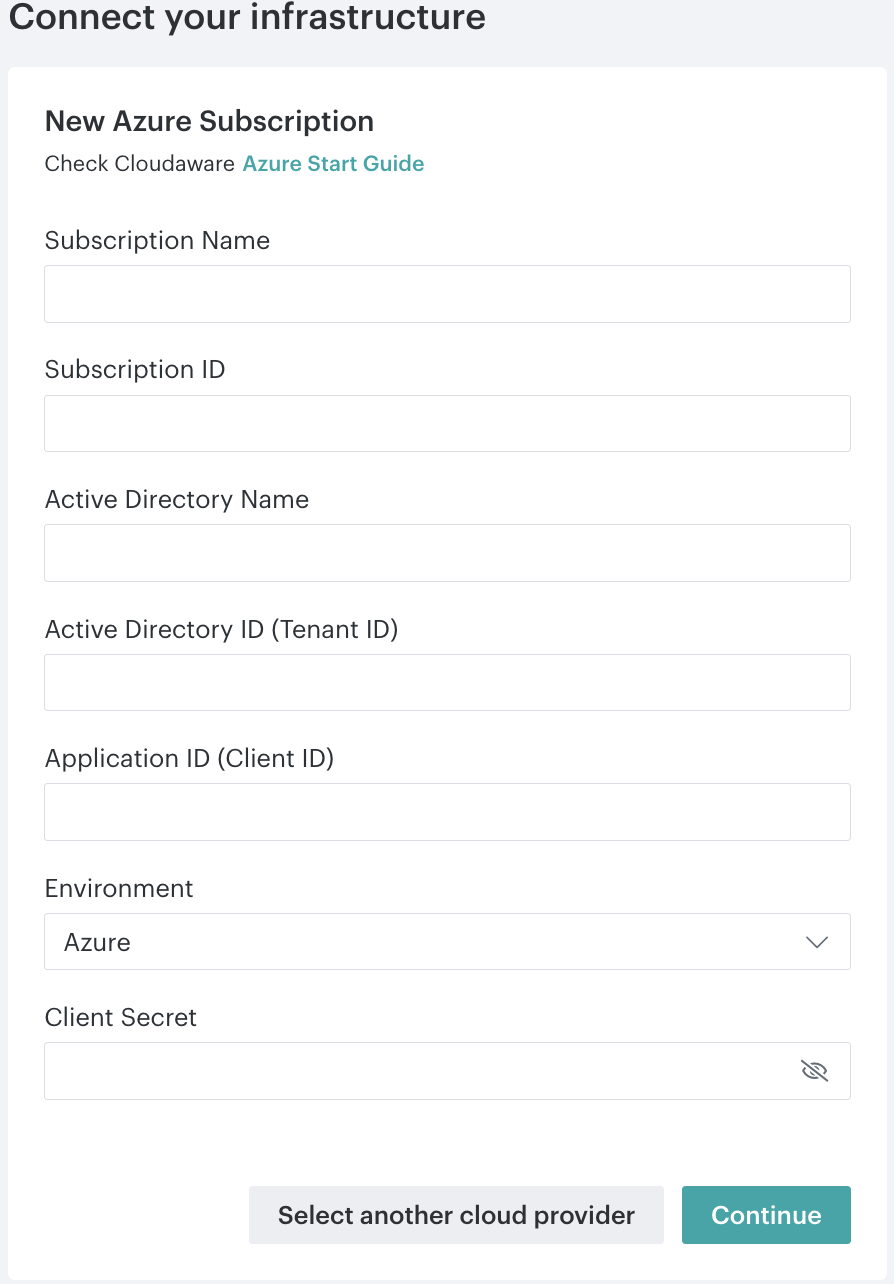
Subscription Name: Enter the Azure subscription name.
Subscription ID: Enter the Azure subscription ID.
Active Directory Name: Enter the Azure Active Directory name.
Active Directory ID (Tenant ID): Enter the Azure Active Directory (tenant) ID.
Application ID (Client ID): Enter the Cloudaware application ID.
Environment: Select the Azure environment from the dropdown.
Client Secret: Enter the client secret.
Click Continue to check the credentials.
Click Save.
After Cloudaware validates the Azure subscription, the trial registration is submitted.
Next steps
Check the inbox for the Registration Complete email.
Registration may take up to 1 hour.