
Kubernetes Billing via OpenCost

OpenCost is an open-source cost monitoring tool designed for Kubernetes. This guide explains how to integrate Kubernetes Billing via OpenCost with Cloudaware.
Overview
Cloud billing reports from major providers often lack the granularity needed to understand costs at the level of individual Kubernetes cluster components. Tools such as OpenCost and Parquet Exporter provide this level of detail, enabling more accurate cost tracking and attribution within the cluster.
OpenCost collects in-cluster resource-usage data and calculates the associated costs. The Parquet Exporter plugin exports this usage and cost data to cloud storage on a daily schedule. Cloudaware then retrieves and imports the exported data for further processing and analysis.
High-level integration flow
To integrate Kubernetes Billing with Cloudaware:
Add the cloud account to Cloudaware.
Configure OpenCost for the Kubernetes cluster.
Set up the integration in Cloudaware.
See the setup guidelines below for details.
Add cloud account
To add a cloud account to Cloudaware, use the following start guides:
Deploy OpenCost and Parquet Exporter
Deploy OpenCost and the Parquet Exporter for your cluster:
Set up Kubernetes billing in Cloudaware
Once the export files are available in the designated buckets, configure the Kubernetes Billing integration in Cloudaware:
Log in to Cloudaware → Admin.
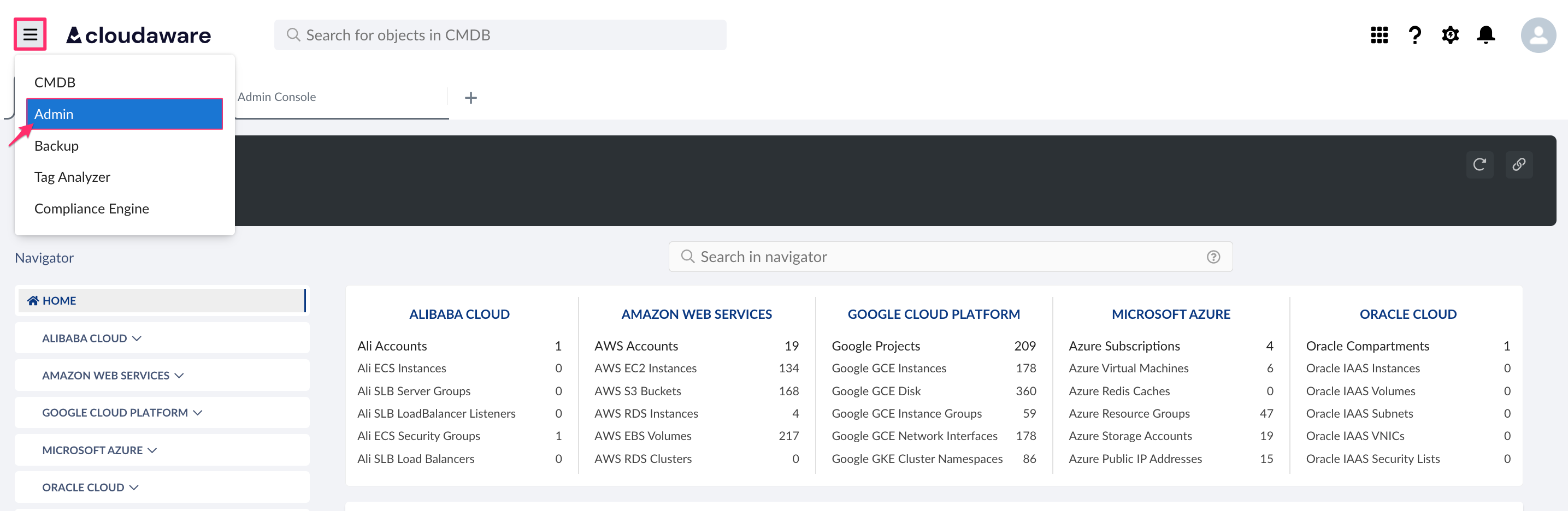
Find Kubernetes Billing in Billing integrations. Click +ADD.

Select the cloud provider* and fill out the form:
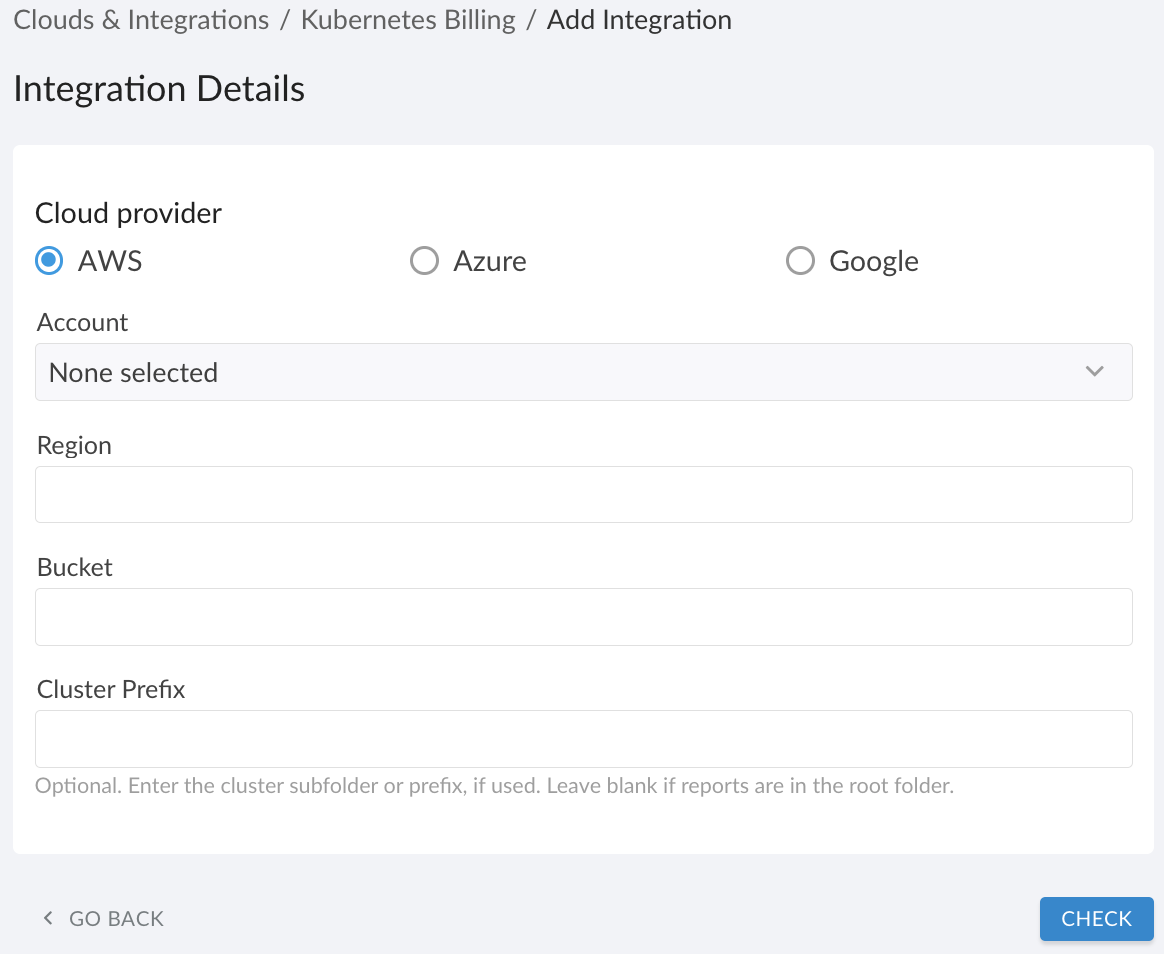
For AWS
Account: select the AWS account that owns the S3 bucket where the Parquet exports are stored.
Region: enter the S3 bucket’s AWS region code, e.g.,us-east-1.
Bucket: enter the S3 bucket name, e.g., my-k8s-cost-bucket.
Cluster Prefix (optional): specify the value preceding the cluster ID in the cluster ARN if any subfolders or naming prefixes are used. Leave blank if cost reports are stored in the bucket root. See Step 5 in the OpenCost Deployment for AWS guide.For Azure
Active Directory: select the tenant that contains the identity used to access the Storage Account with the Parquet exports.
Storage Account: enter the Storage Account name, e.g., costexportssa.
Container: enter the Blob container name.
Cluster Prefix (optional): specify the value preceding the cluster ID in the cluster path if any subfolders or naming prefixes are used. Leave blank if cost reports are stored in the container root. See Step 6 in the OpenCost Deployment for Microsoft Azure guide.For Google
Service Account: select the GCP service account that has permission to read Parquet exports in the bucket.
Bucket: enter the storage bucket name, e.g., my-cost-exports.
Cluster Prefix (optional): specify the value preceding the cluster ID in the cluster path if any subfolders or naming prefixes are used. Leave blank if cost reports are stored in the bucket root. See Step 6 in the OpenCost Deployment for Google Cloud guide.
Click CHECK to validate the connection. Once validation succeeds, click SAVE.

*For multi-cloud environments, configure a separate Kubernetes Billing integration for each cloud provider.

Within a single cloud provider, each cluster that uses a different subfolder or naming prefix for reports must be added to Cloudaware as a separate integration.
Verify the integration status. A green light in the ‘Status’ column indicates successful configuration. If the light is red, contact support@cloudaware.com.
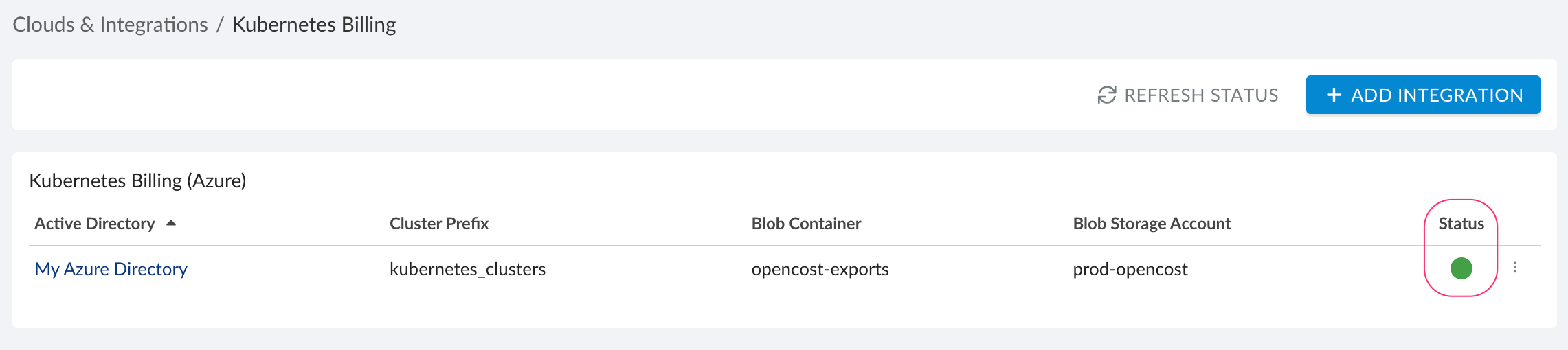
Allow up to 24 hours for Cloudaware to display all added cluster integrations in the CMDB.