
Jira Accounts

This guide explains how to connect a Jira account to Cloudaware to import Jira issues into the CMDB. Cloudaware links Jira issues to specific CIs.
Prerequisites
Ensure that the account has access to all Jira projects you want Cloudaware to use. Cloudaware can only access and import data from projects available to that Jira user.
Optional: If you use API tokens with scopes in Jira, ensure that the following Jira OAuth scopes are granted to Cloudaware:
read:jql:jira– View JQLread:jira-work– Read Jira project and issue data, search for issues, and access related objects such as attachments and worklogsread:issue:jira– View issuesread:issue-meta:jira– View issue metadataread:project:jira– View projectsread:servicedesk-request– Read customer request data, including approvals, attachments, comments, request participants, and status transitions. Also read service desks and request types, including their fields, properties, and groupsread:request.feedback:jira-service-management– View request feedbackread:user:jira– View user informationwrite:jira-work– Create and edit issues, post comments as the user, create worklogs, and delete issueswrite:request.feedback:jira-service-management– Create and update request feedbackwrite:servicedesk-request– Create and edit customer requests, including comments, attachments, approvals, request sharing, subscriptions, and transitions
Add a Jira account
For Cloudaware to discover and collect Jira issues in the CMDB, add a Jira account:
Log in to Cloudaware → Admin.
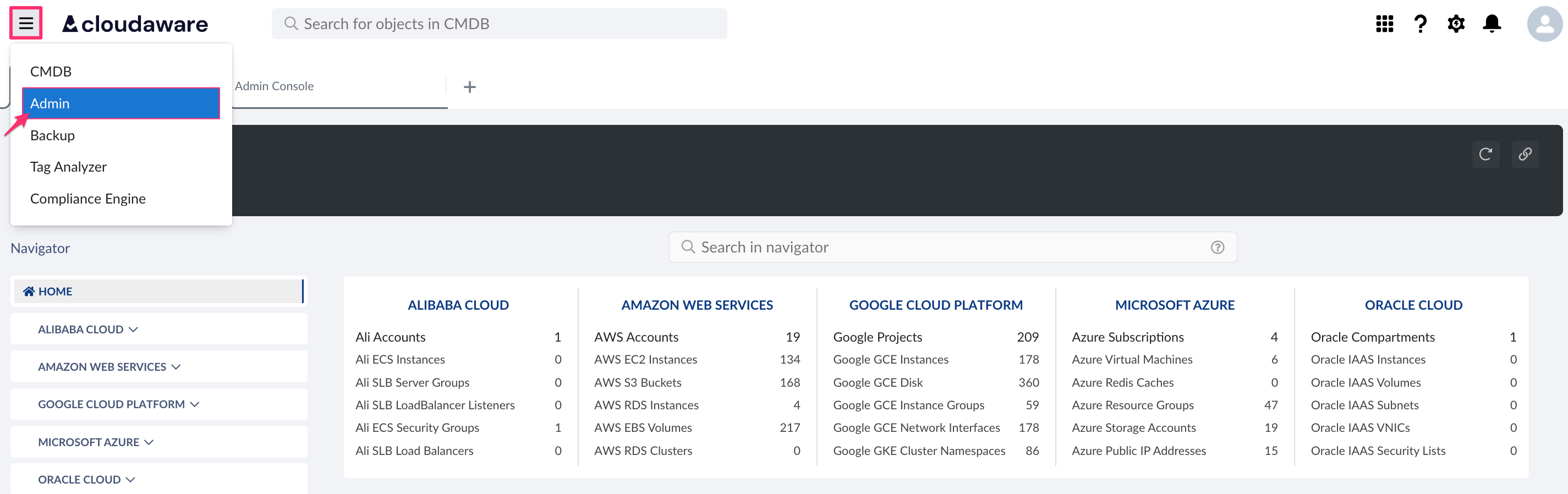
Find Jira Accounts & Actions in integrations. Click +ADD.

Fill out the form:
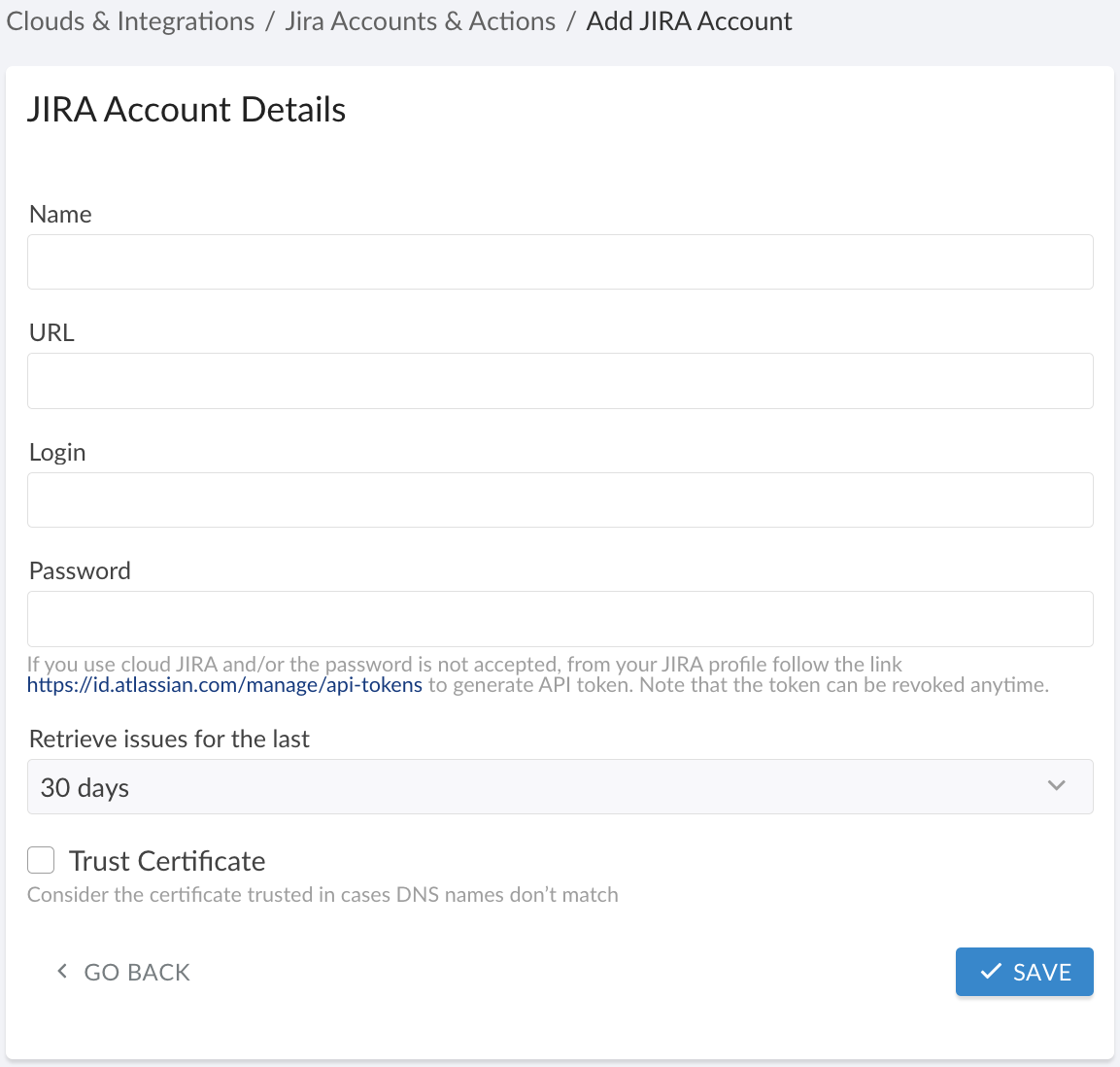
WHERE
Name – a name for the Jira integration, e.g., Prod Jira
URL – the Jira instance URL in the formathttps://jira.companyname.com
Login – the Jira username
Password – the Jira password (for cloud Jira, use an API token)
Retrieve issues for the last – select the desired time range from the drop-down list
Trust Certificate – check this box only if Jira is in a private network and a TunHub gateway has been set up by Cloudaware. In this case, the Jira URL is in the formathttps://gw.tunhub.cloudaware.com:12345.
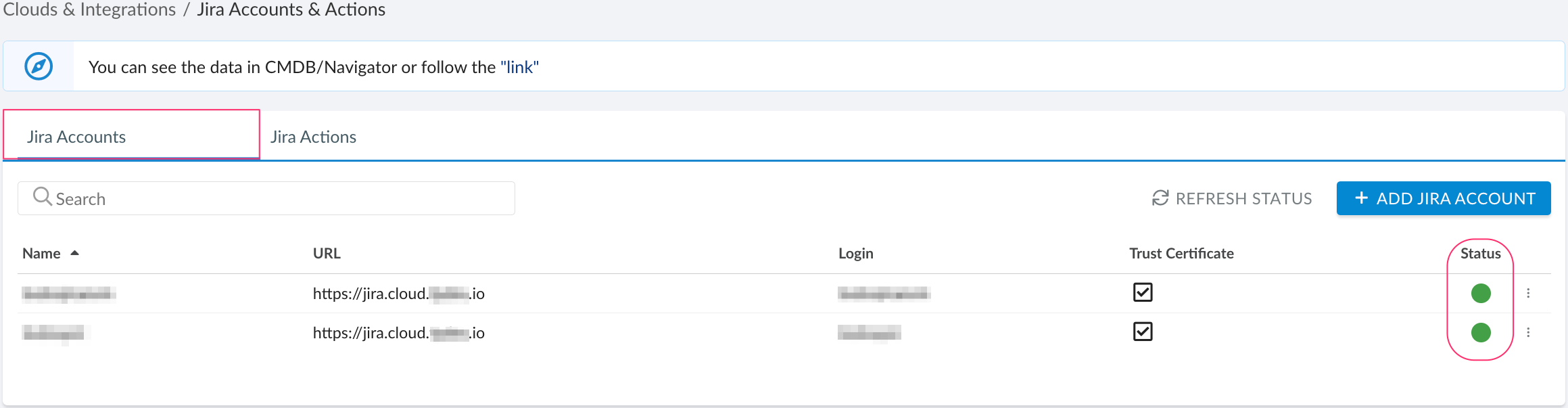
Click SAVE.A green light in the ‘Status’ column indicates successful configuration. If the light is red, contact support@cloudaware.com.
To view Jira-related data, go to Cloudaware CMDB Navigator. Select JIRA in the left-hand menu.
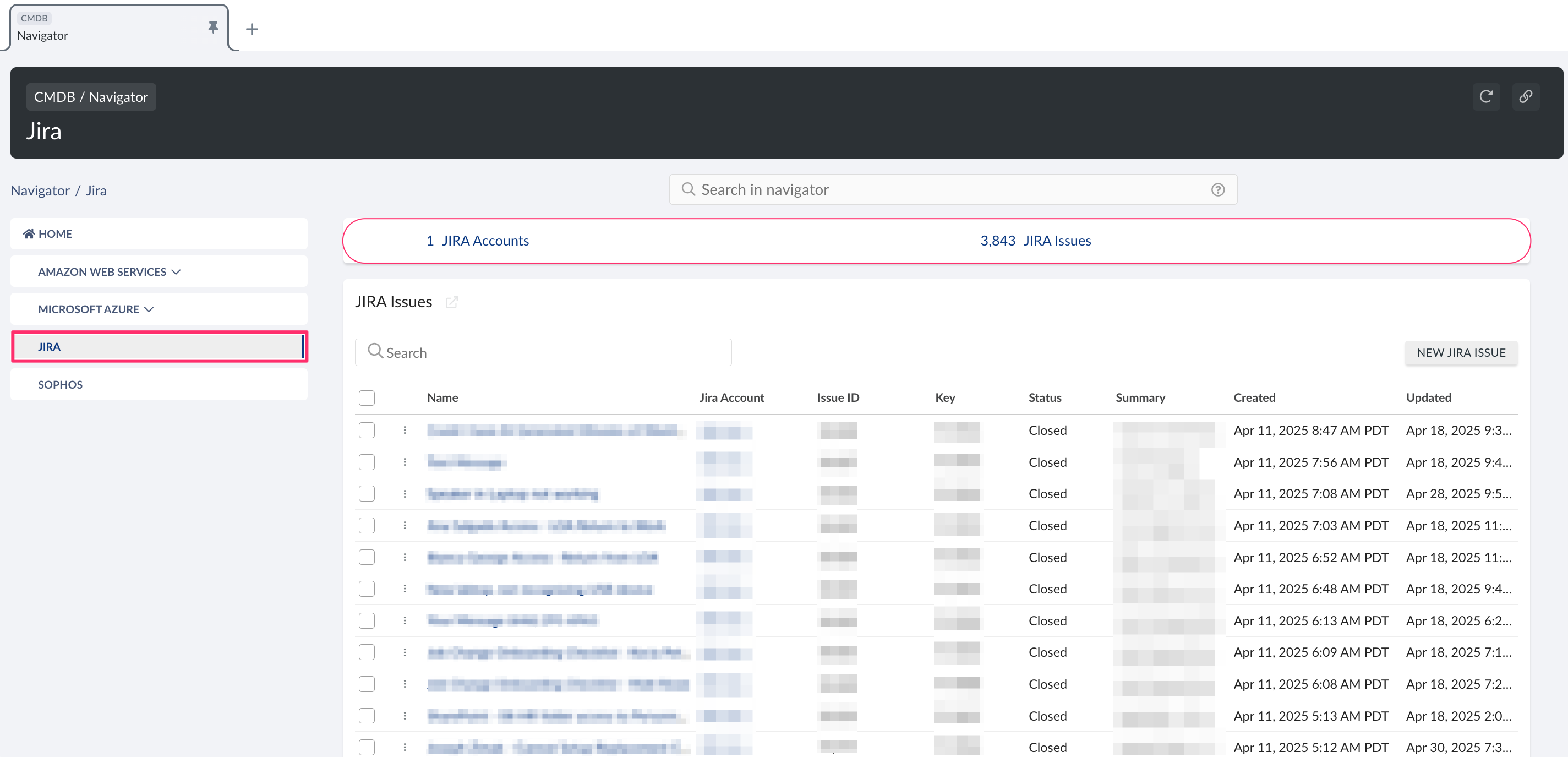
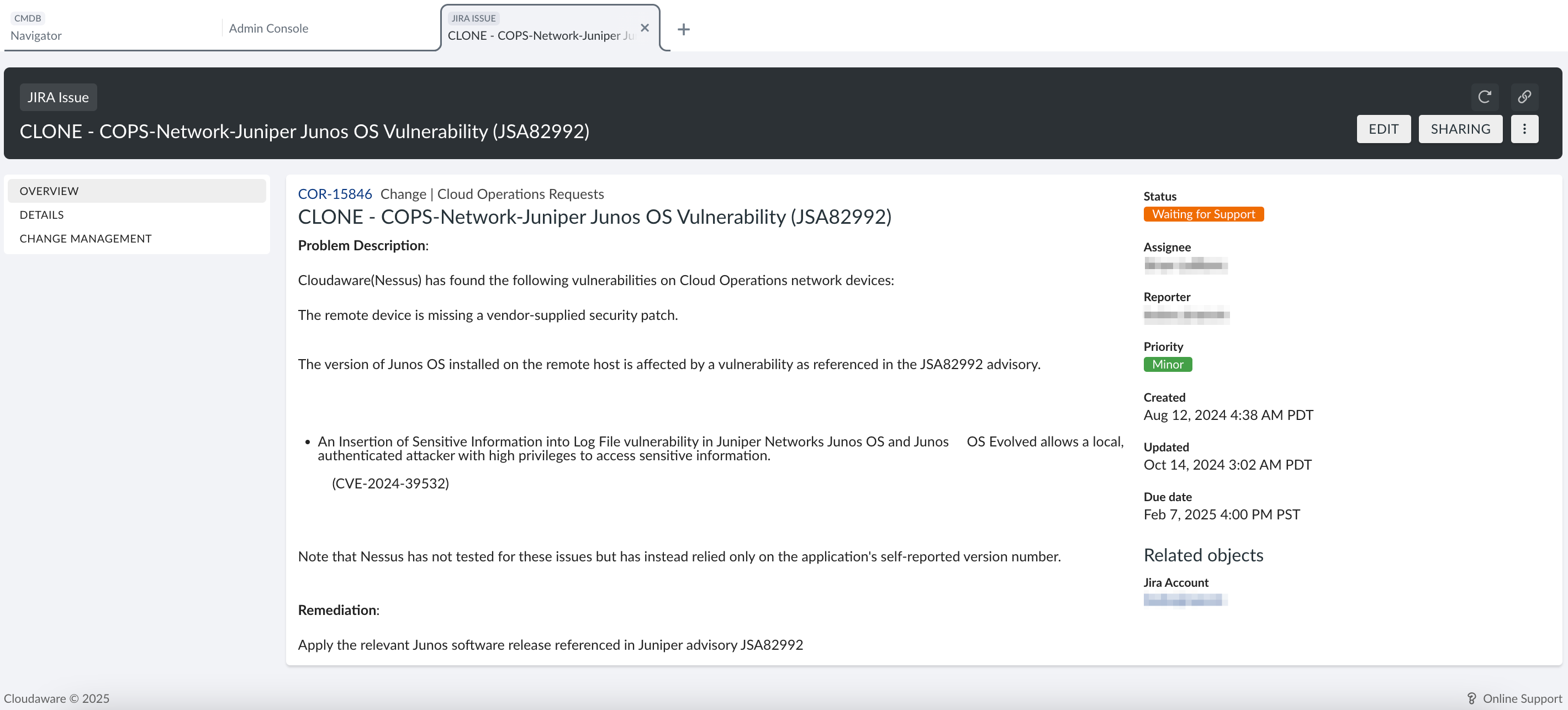
Jira issue in Cloudaware CMDB
Below is the Jira issue as displayed in the Cloudaware CMDB:
List of Jira objects
Cloudaware supports the following Jira objects at the moment:
Jira Account
CA10__CaJiraAccount__cJira Issue
CA10__CaJiraIssue__c
! Next step - set up Jira Action