
Enable Auto-Collection of CloudTrail Events

This guide explains how to enable automatic collection of AWS CloudTrail events directly into the Cloudaware CMDB and Conflux.
Prerequisites
An AWS account must be configured in Cloudaware. If not yet added, follow the AWS Start Guide to connect the account.
Introduction
Cloudaware provides a CloudFormation template for automatic collection of CloudTrail logs (events) directly into the CMDB. This template file CF-template-cloudwatch-stream.yaml does not create a new CloudTrail Trail. Instead, it creates a "subscription" to an existing CloudWatch Log Group that your CloudTrail is already writing logs to.
To enable auto-colleciton, follow the steps below.
Step 1: Ensure CloudTrail is Writing to CloudWatch
Before launching the template, verify that the following conditions are met:
A Trail exists in the AWS CloudTrail service that you want to monitor.
The CloudWatch Logs option is Enabled for this trail.
The Log Group Name where the trails save its logs is known.
To find the log group name: go to CloudTrail -> Trails -> click on your trail. In the Storage locations section, find the Log group field.
Step 2: Download the CloudFormation Template from Cloudaware CMDB
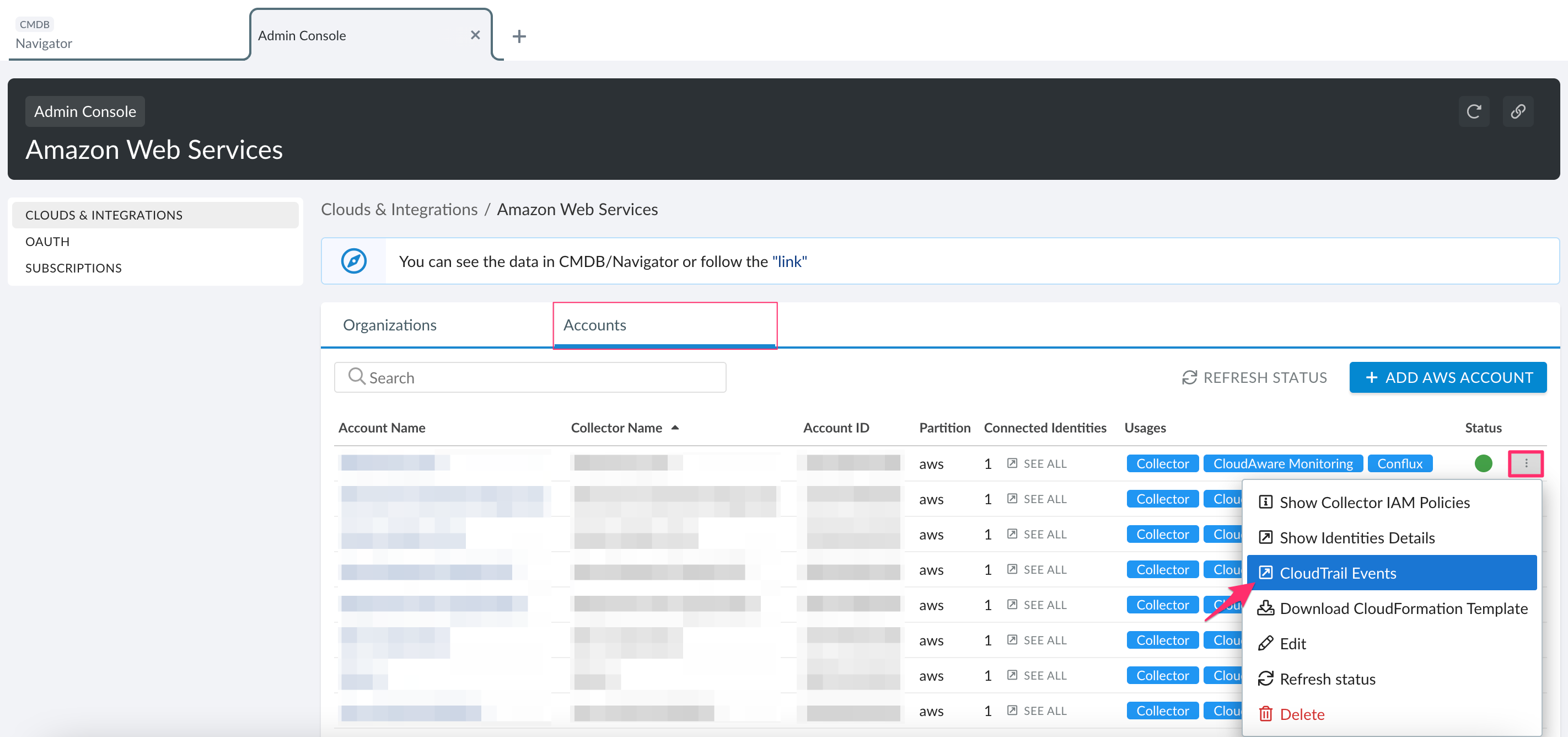
Log in to Cloudaware → Admin. Select Amazon Web Services.
Locate the AWS Account configured before. Click the three-dot menu → CloudTrail Events.
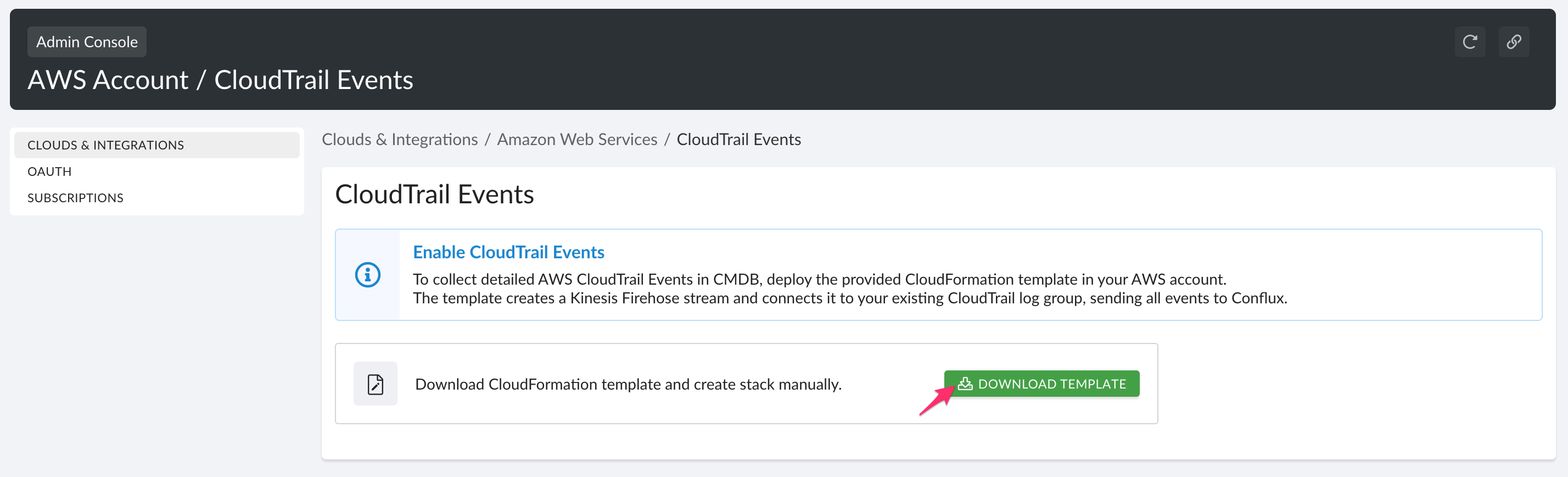
Click DOWNLOAD TEMPLATE.
Step 3: Launch the CloudFormation Template
Navigate to the CloudFormation service in your AWS console.
Click Create stack and select With new resources (standard).
Upload the
CF-template-cloudwatch-stream.yamltemplate.Click Next.
Step 4: Fill in Stack Parameters
Fill in the parameters:
Stack name: enter a descriptive name, e.g.,
Cloudtrail-to-Conflux.For Parameters:
BackupS3BucketArn
Specify the ARN of an existing S3 bucket that Firehose will use to back up logs that fail to be delivered (e.g.,arn:aws:s3:::my-firehose-backups).Note: The S3 bucket specified here must already exist before running the stack.
ExistingLogGroupName:
Paste the exact log group name from Step 1 here (e.g.,aws-cloudtrail-logs-123456789012-abcdefg).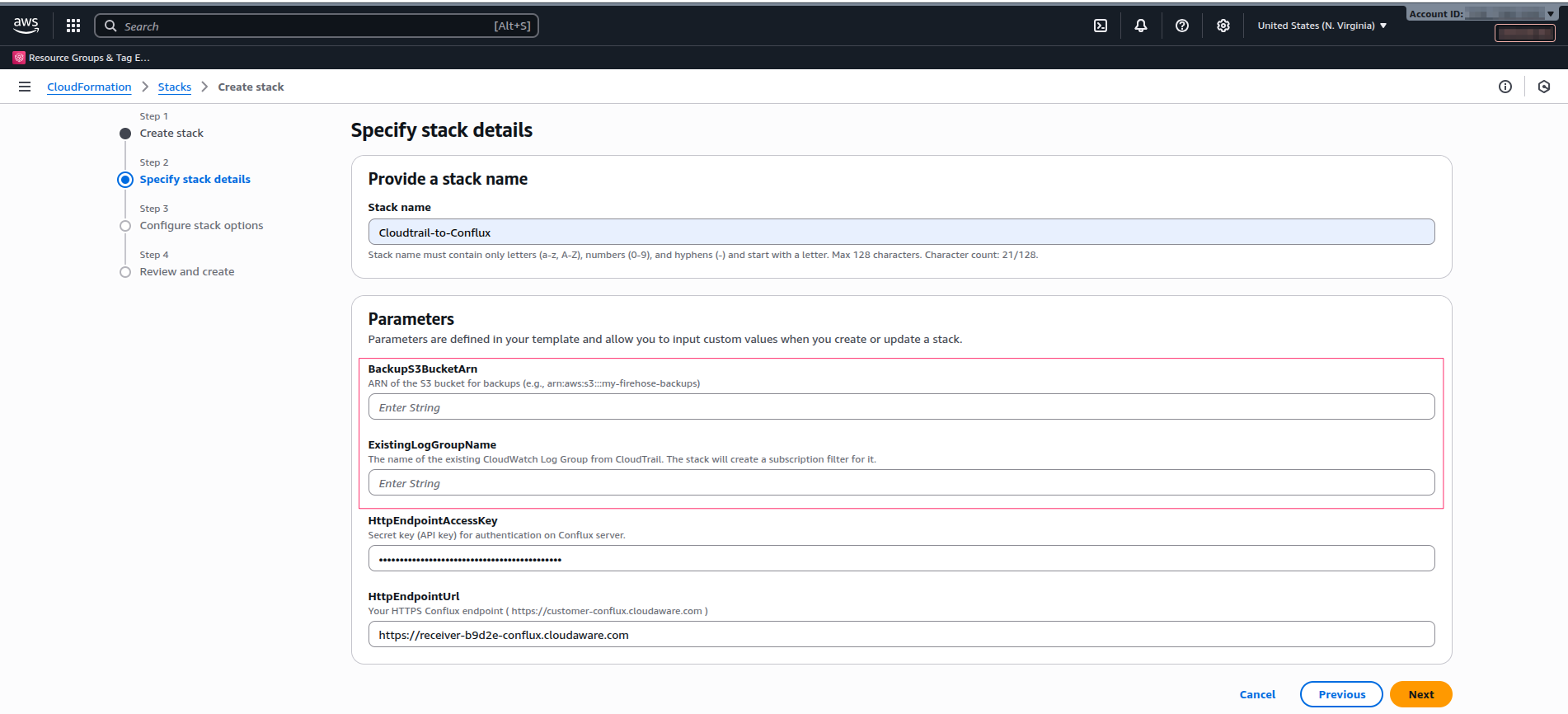
HttpEndpointAccessKey and HttpEndpointUrl values are propagated automatically.Click Next → Next. Acknowledge that the stack can create IAM resources, and click Submit.
Step 5: Verify Completion
Once the stack status changes to CREATE_COMPLETE, the setup is complete.